iPad/iPhone screen mirroring on Nobara Linux
This tutorial explains how to set up and use UxPlay on Nobara Linux to mirror an iPad screen using the AirPlay protocol.
Prerequisites
- An iPad and a Nobara Linux PC connected to the same local network.
- Access to a terminal (such as Alacritty).
Step 1: Install UxPlay
UxPlay is the primary tool used to act as an AirPlay server on Linux. Install it and the necessary dependencies using the package manager.
1
sudo dnf install uxplay
Step 2: Configure the Firewall
AirPlay requires several network ports to be open to communicate with Apple devices. Use the following commands to configure the firewall rules.
1
2
3
4
5
6
sudo firewall-cmd --add-service=mdns --permanent
sudo firewall-cmd --add-port=5353/udp --permanent
sudo firewall-cmd --add-port=6000-6001/tcp --permanent
sudo firewall-cmd --add-port=7000-7001/tcp --permanent
sudo firewall-cmd --add-port=7100/tcp --permanent
sudo firewall-cmd --reload
Step 3: Enable Network Discovery Services
UxPlay relies on Avahi (mDNS/DNS-SD) to be visible to your iPad. Ensure the service is enabled and running.
1
sudo systemctl enable --now avahi-daemon
Step 4: Create a Shortcut with Hardware Acceleration
To make the mirroring process easier and more efficient, you can create a Zsh alias. The -avdec flag enables hardware-accelerated video decoding, which significantly reduces CPU usage and latency.
- Open your Zsh configuration file:
1
nvim ~/.zshrc
- Add the following line to the bottom of the file:
1
alias ipad-mirror="uxplay -avdec"
- Save the file and reload your shell configuration:
1
source ~/.zshrc
Step 5: Start Mirroring
- Open your terminal and run the new shortcut:
1
ipad-mirror
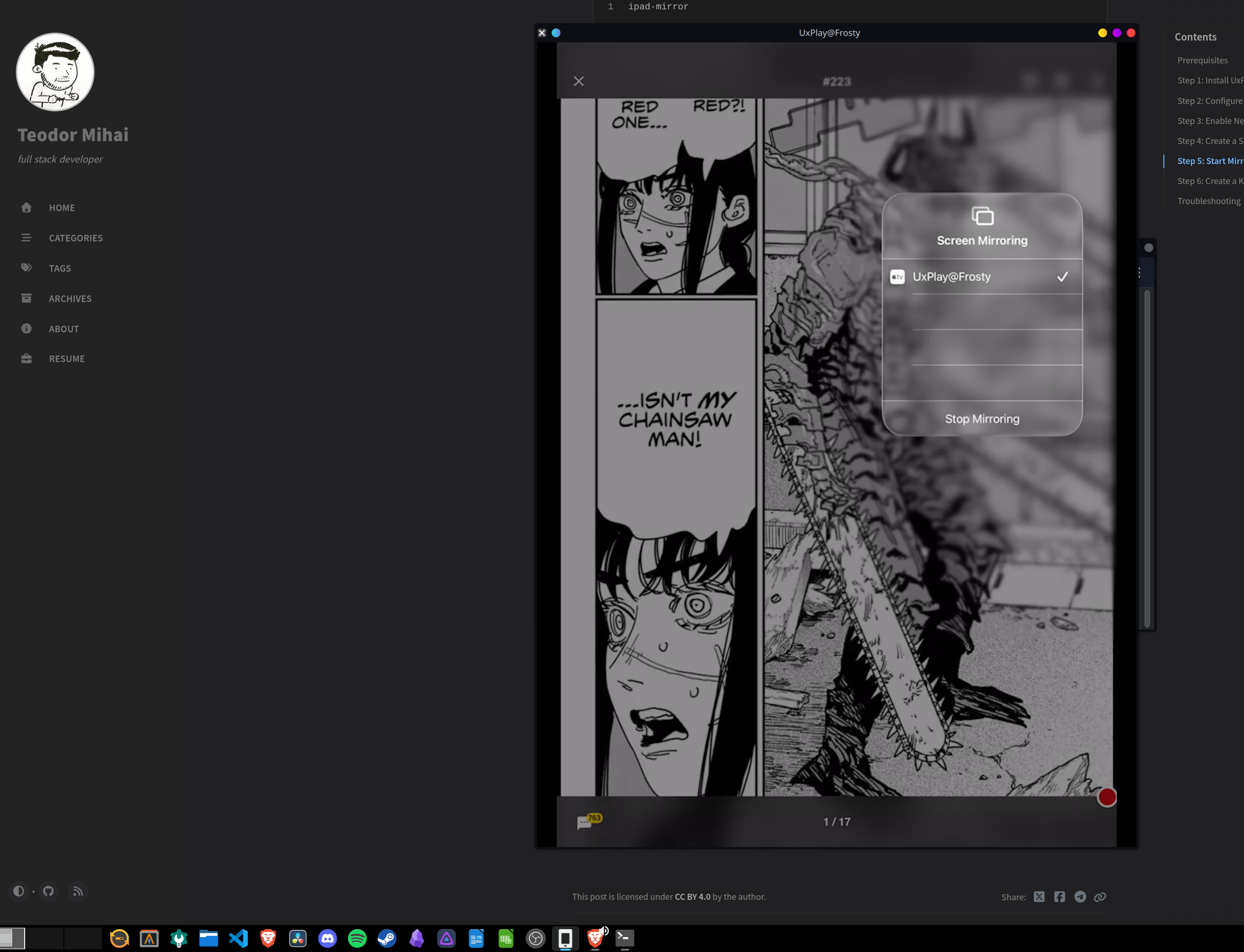
- On your iPad, swipe down from the top-right corner to open the Control Center.
- Tap the Screen Mirroring icon (two overlapping rectangles).
- Select your computer from the list of available devices.
Step 6: Create a KDE Desktop Shortcut
Creating a desktop entry allows you to launch the mirror from your Application Launcher or pin it to your taskbar.
- Create a new desktop entry file:
1
nvim ~/.local/share/applications/ipad-mirror.desktop
- Paste the following configuration into the file:
1
2
3
4
5
6
7
8
[Desktop Entry]
Name=iPad Mirror
Comment=Start AirPlay Mirroring Server
Exec=uxplay -avdec
Icon=phone-apple-symbolic
Terminal=true
Type=Application
Categories=Utility;
- Save and close the file.
- You can now find “iPad Mirror” in your KDE Application Launcher. Right-click it to select “Pin to Task Manager” for one-click access.
Troubleshooting
- Black Screen: If the window opens but remains black, try running the command with a forced video sink:
uxplay -avdec -vs autovideosink. - Not Found: If the iPad cannot find the PC, verify that both devices are on the same Wi-Fi SSID and that no VPN is active on either device.
- Performance: Ensure you are using a 5GHz Wi-Fi band or Ethernet for the PC to minimize lag and stuttering during high-resolution mirroring.